
Reminders, reports and notifications
Overview. IdentityCheck helps you keep verifications moving and keep the evidence. You can automatically remind clients who have not finished, get an email when a result arrives, and download a report PDF that captures the outcome and images for your records. Downloading the PDF is one way to keep a lasting copy of your evidence, where your process needs it, and it can be automated on some integrations.
Can I chase clients who have not finished?
Yes, and you do not have to do it by hand. You can switch on automated reminders, so clients who have started but not completed a check are nudged for you.
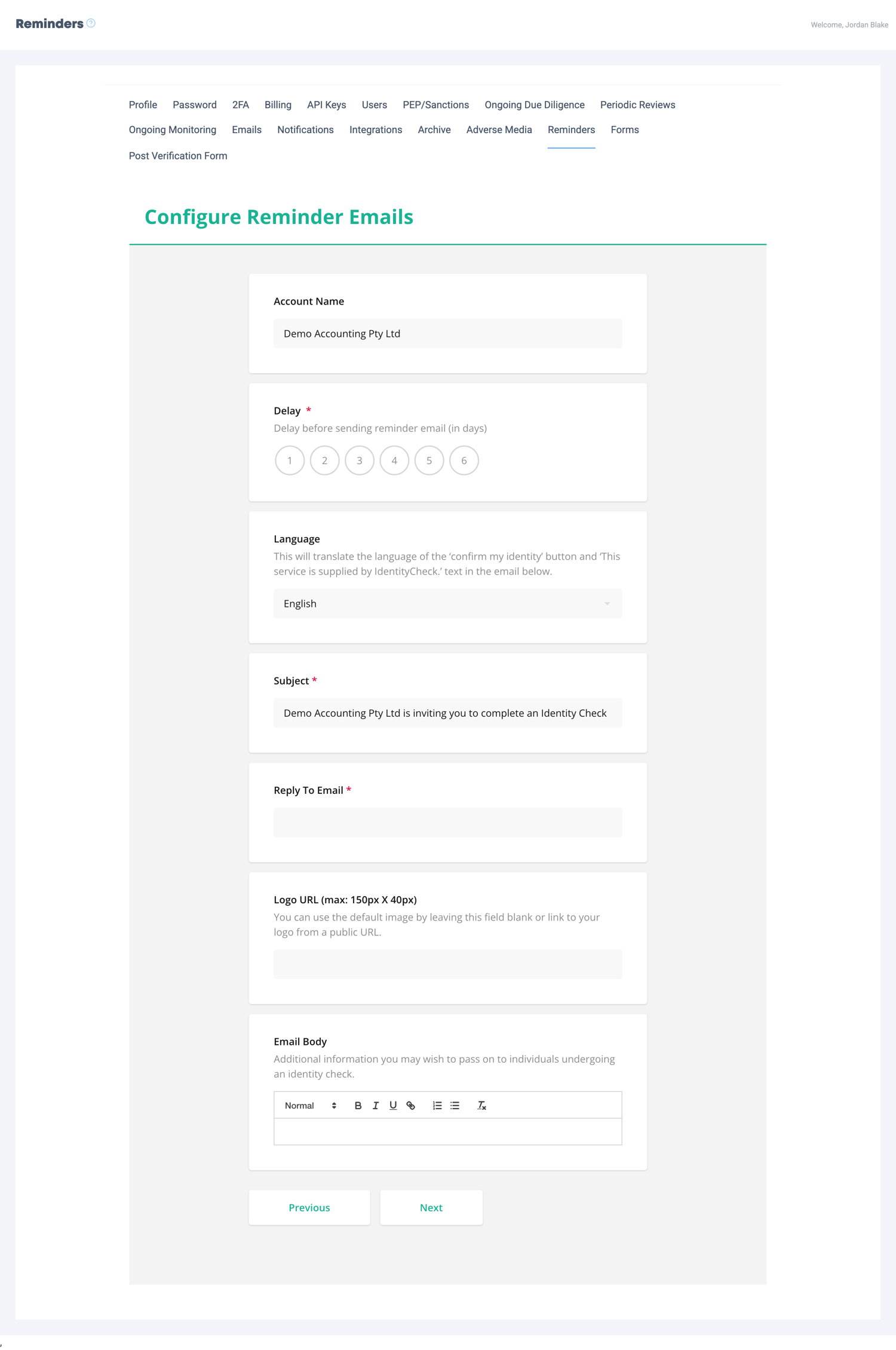
Reminders can go out by email and by SMS, and they are considerate by design: they stop automatically as soon as the client completes their check or the request is no longer active. That means a client who has already finished is never pestered, and you are not manually keeping track of who still owes you a verification. Reminders are an opt-in setting, so you turn them on and set them up to suit how your firm likes to communicate.
For a practice manager, this removes one of the more tedious parts of onboarding: the follow-up. Instead of a spreadsheet of half-finished clients and a reminder in your own calendar, the platform does the chasing and steps back the moment the client is done. If a request has lapsed entirely, you can also send the client a fresh one, as covered in Understanding verification outcomes.
How do I download the report and keep my evidence?
When a check is complete, open the verification and download the report PDF. This is your keepable record. The PDF contains the report summary and the captured images from the verification, and when you download it you can optionally include the PEP/Sanctions and adverse-media sections so everything sits in one audit-ready document.
Downloading the PDF is a way to keep a lasting copy of your evidence. The captured ID and selfie images are shown against the verification for a period after the check, so where you need a retained record, download the report while the check is fresh and file it in your own records.
Privacy and security. A report PDF contains sensitive identity information and images. Only download and store it where you genuinely need to, keep it somewhere secure, and follow your firm's data-handling and retention policy. Holding fewer copies, stored well, is safer than downloading everything by default.
On some integrations, including HubSpot and FYI Docs, this download can be automated, so the report is saved to your connected system for you. You switch it on in the integration settings page.
How do I export a list of prior checks?
To pull a record of checks across clients rather than one report at a time, you can download a CSV of prior checks from your dashboard. It gives you a spreadsheet of past verifications you can file, filter or reconcile against your own client list, alongside the individual report PDFs.
How do I get notified when a result arrives?
You can have IdentityCheck email your firm the moment a decision comes in. The notification announces the outcome and includes a link straight into the record, so whoever handles onboarding can pick it up without watching a dashboard.
You control where these notifications go. Combined with reminders on the way in and the downloadable report on the way out, this gives you a hands-off loop: the request goes out, the client is reminded if needed, and the result comes back to you, without anyone having to babysit the process.
Frequently asked
Can I chase clients who have not finished? Yes. You can switch on automated reminders, so clients who have not completed their check are nudged by email and SMS. Reminders stop automatically as soon as the client finishes or the request is no longer active, so nobody is chased unnecessarily.
How do I download the report? Open the verification and download the report PDF. It contains the report summary and the captured images, and you can optionally include PEP/Sanctions and adverse-media sections. Save the PDF to keep a lasting copy of your evidence in your own records.
How do I get notified when a result comes in? You can have IdentityCheck email your firm when a decision arrives, announcing the outcome with a link into the record.
Why should I download the PDF rather than rely on the screen? Because the PDF is a complete, self-contained copy you hold in your own records. Downloading it while the check is fresh means your evidence, including the captured images, is always available to you, independent of anything else.