
Managing your team and roles
Overview. You can invite colleagues to your IdentityCheck account and give each one a role that matches their job, from running the account to doing the day-to-day verification work. The number of users you can add depends on your subscription, so check the pricing page for your plan's limit. If you belong to more than one firm's account, you can switch between them from inside the app using a single login.
How do I add a colleague?
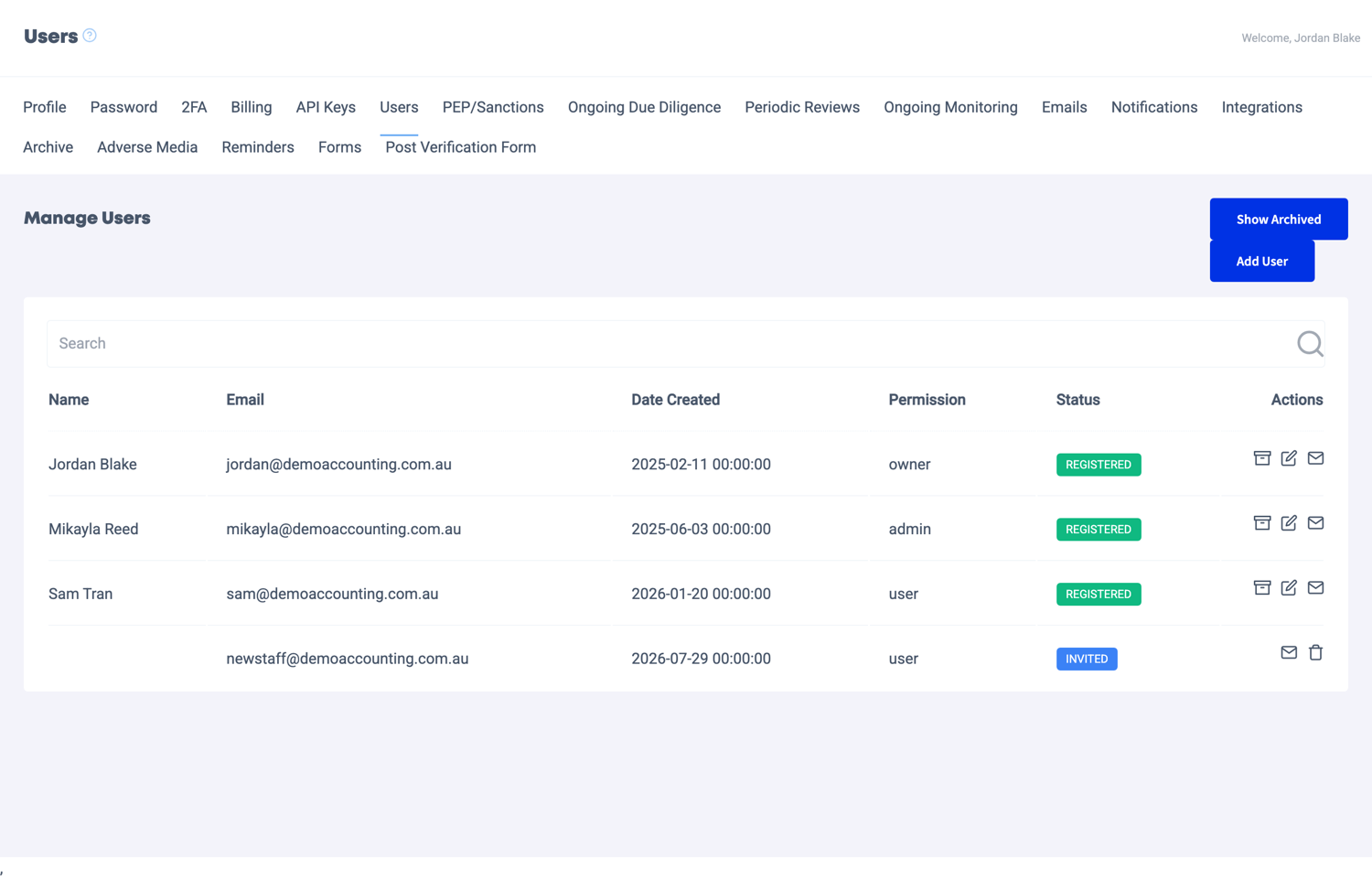
Go to your team settings and invite the person by email. As part of the invitation you choose the role you want them to have, which sets what they can see and do. They receive an email, set up their own secure login, and join your account with the permissions that role allows. How many users you can add differs by subscription, so see the pricing page for your plan.
Not everyone in your practice-management software or CRM needs their own IdentityCheck account. If your team works through the integration, checks can be started and results read without each colleague logging in to IdentityCheck, which is smoother to run and better for privacy and security. Create IdentityCheck accounts only for the people who genuinely need to be in the platform, so fewer people can see client identity information.
You stay in control of your team over time. As people join, change jobs or leave, you can update a colleague's role or remove their access. It is good practice to review who has access periodically, and to give each person only the level of access their role actually requires.
What can each role do?
Each person has one role in your account, so their permissions are always clear. At a high level:
- Owner runs the account, including the billing and plan.
- Admin manages people and settings, such as inviting teammates and adjusting how the account is configured.
- User does the day-to-day work: sending verifications, reviewing responses and reading results.
- Developer is for firms that connect to IdentityCheck through its API, and manages API keys.
Choose the role that fits what each person needs to do. A front-desk team member sending verifications is typically a user, while the person responsible for the account and its subscription is the owner. You can change someone's role later if their responsibilities change.
Can I switch between accounts?
Yes. Some practitioners support more than one firm or entity, so IdentityCheck lets one person belong to several accounts, each with its own role. You switch between them inside the app, without logging out and back in, and you always act with the role you hold in whichever account you are currently in. This keeps each firm's work cleanly separated while letting you work from a single login.
For a business that runs multiple accounts, such as separate divisions, offices or personnel accounts, the user list is managed separately for each one. That gives you tighter control over who can see which client identity information, so people only have access to the accounts they actually work in.
Frequently asked
How do I add a colleague to my account? Invite them by email from your team settings and choose the role you want them to have. They receive an invitation to set up their own login and then join your account with the permissions that role allows. You can update or remove access later as your team changes.
What do the different roles do? At a high level: an owner runs the account and its billing, an admin manages people and settings, and a user does the day-to-day verification and review work. Firms that use the API can also assign a developer role for managing API keys. You give each person the role that matches their job.
I work with more than one firm. Can I use one login? Yes. One person can belong to several accounts, each with its own role, and switch between them inside the app without logging out and back in. This suits practitioners who support multiple firms or entities from a single login.
A colleague needs to see verification results but is asked to log in. Do they need their own subscription? No, they do not need a separate subscription. The outcome of a check, Positive or Negative, is written back to your integrated platform, so your team can see the result there. To open the full verification, which includes the client's personal information and the captured document images (held for about 45 days), a person needs to log in to IdentityCheck. Invite the colleague as a user from your team settings and they can log in and review full results with the role you give them. Adding users is part of your existing account, subject to the user allowance on your plan. Because the full session contains personal information, it is worth checking your firm's privacy and security policy before inviting a new user.