
Changing a form's colours, font and background
Overview. Each form has a Themes tab where you set the colours, font, background and question style your clients see. The theme belongs to that form only, so brand each form your clients use. This article covers the settings that matter most, how to save, and how to reset a form to the standard styling.
Open the Themes tab
- Go to Account, then Forms, and click the view (eye) icon on your form.
- Click Edit. The Edit card changes from No to Yes.
- Click the Themes tab at the top of the builder.
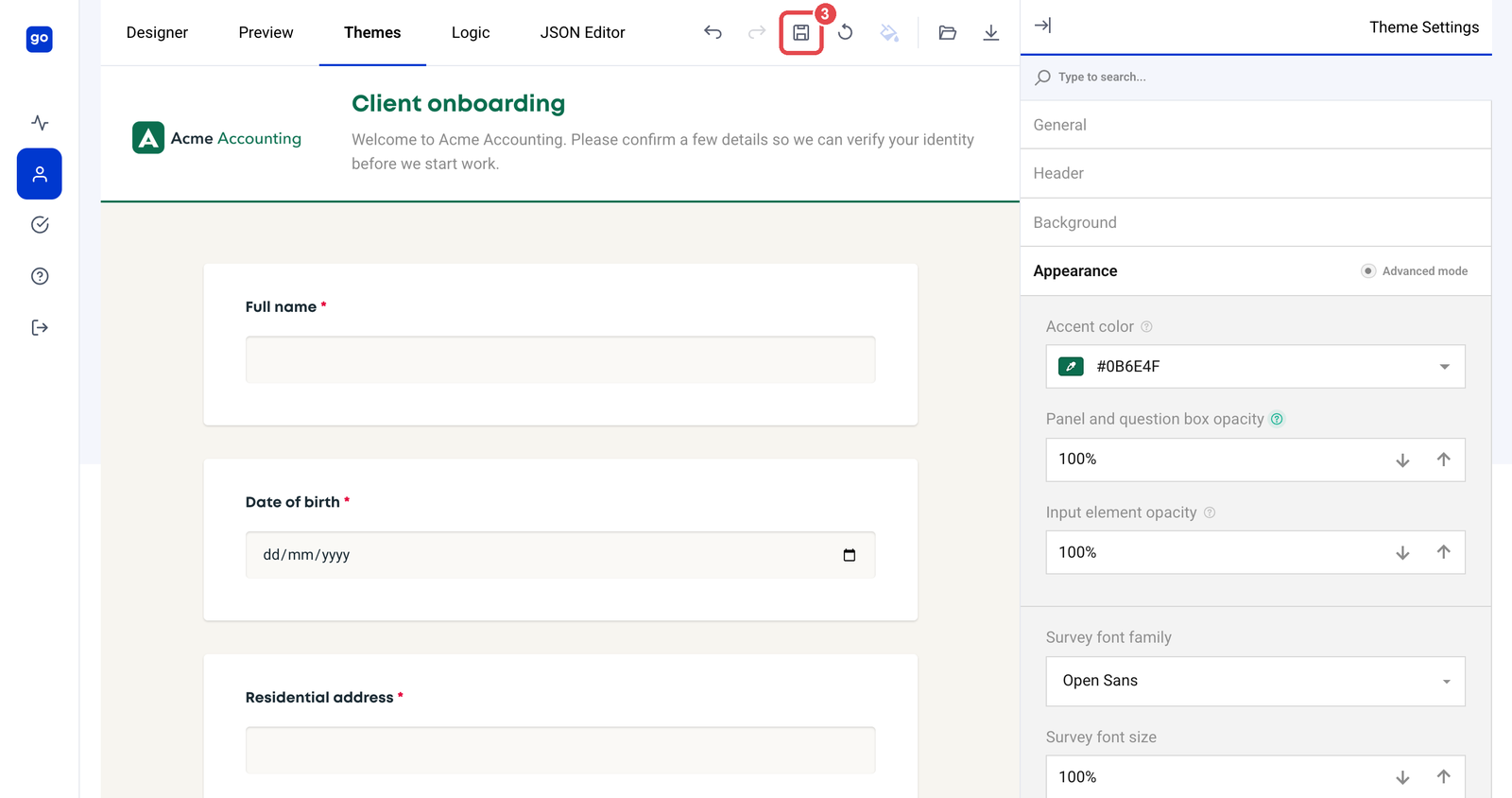
The settings that matter most
The panel on the right, Theme Settings, has four groups. The Themes tab shows a live preview of the form as you change them.
- Appearance
- Accent color. Your main brand colour. It is used for buttons and selected answers, and it tints the band of colour around the form on your client's screen. Text on it switches between white and dark automatically.
- Survey font family. The font for the form's text. Pick one close to your brand font.
- Corner radius, Survey font size and Survey scale factor fine-tune the look. The defaults suit most firms.
- Background
- Background color. The colour behind the form. A soft neutral that suits your brand works best.
- Background image, with Opacity to soften it. Use a public https link or upload a PNG, JPEG or WebP file of up to 2MB. Keep it subtle, so questions stay easy to read.
- General
- Light or Dark.
- Question appearance. Default shows each question on its own panel. Without Panels gives a flatter, simpler look.
- Header. Only the basic header can be saved for now.
Save the theme
Click the save (disk) icon in the Themes tab toolbar, labelled Save Theme. It turns active once you have changed something, and a Saved message confirms it. The theme saves separately from your questions: the Designer tab's Save Survey icon does not save it, and leaving the page without saving discards your theme changes.
Your clients see the new theme as soon as you save.
Check what is saved
While you are editing, the Form Theme card shows whether the form has a saved theme:
- "This form has no saved theme, so public pages render in the standard styling."
- "This form has a saved theme. Public pages render it in these colours."

Reset to the standard styling
Click Edit, then Reset theme on the Form Theme card. The form goes back to the standard styling.
Good to know
- Brand every form your clients see. On a Tranche 2 journey that usually means your consent and intake forms. The colour around the forms comes from the consent form's theme, or the intake form's if the consent form has none.
- Logos are set in the Designer tab. See Adding your logo and images to a form.
Frequently asked
Which colour should I change first? The accent colour. It is used for buttons, selected answers and the band of colour around the form, so it does most of the work of making a form look like yours. Text on it switches between white and dark automatically so it stays readable.
My theme changes disappeared. What happened? The theme saves separately from the questions. In the Themes tab, click the save icon labelled Save Theme before you leave the page or switch back to editing questions. Unsaved theme changes are lost without a warning.
How do I go back to the standard look? Click Edit on the form, then use Reset theme on the Form Theme card. The form returns to the standard styling.