
Adding your logo and images to a form
Overview. Your logo at the top of a form tells your client straight away who is asking for their details. You add it in the form builder's Designer tab, either by uploading a file or by pasting a link. Your public intake page has its own logo setting. This article covers both.
Add your logo to a form
- Go to Account, then Forms, and click the view (eye) icon on your form.
- Click Edit. The Edit card changes from No to Yes.
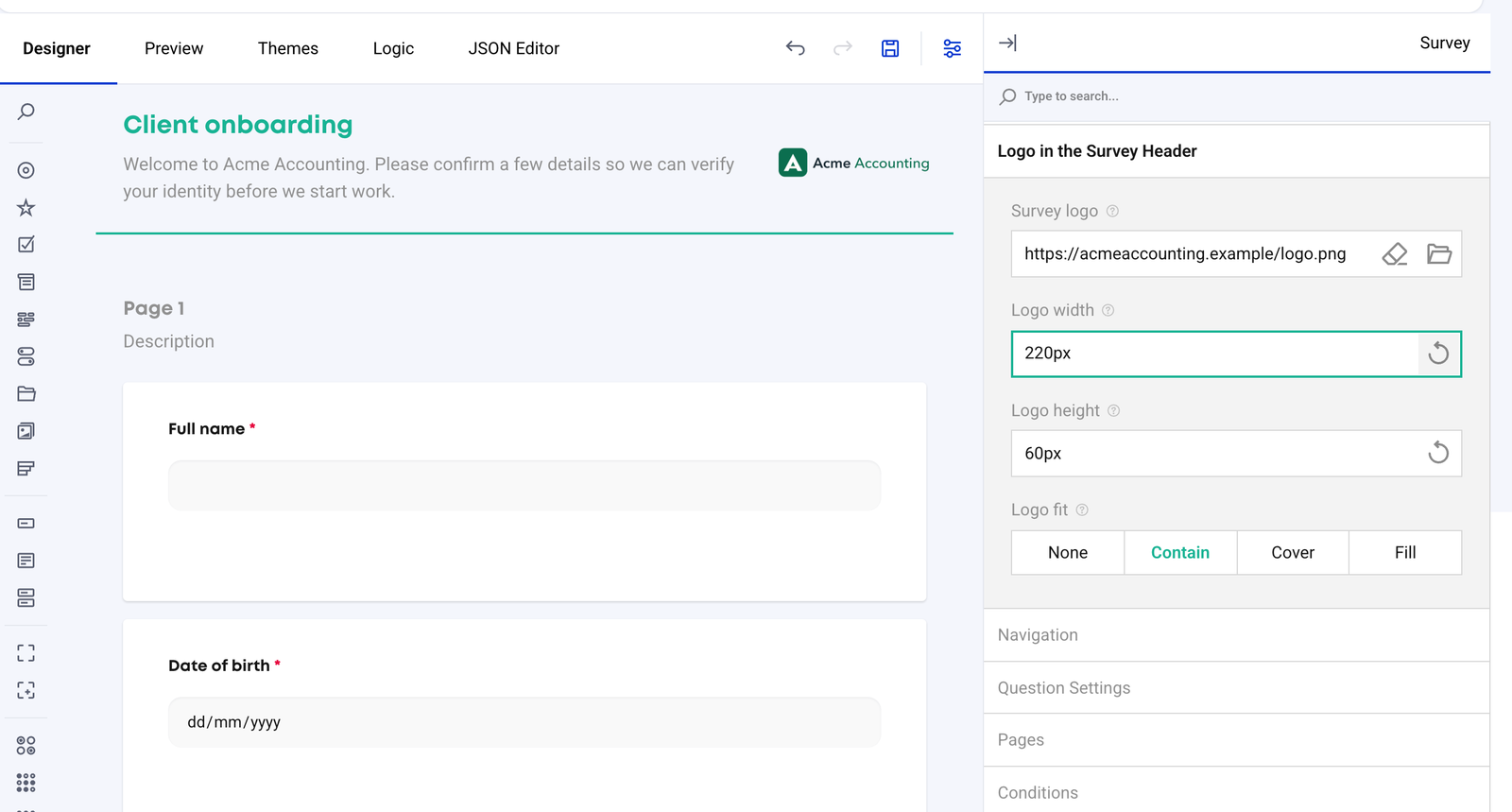
- In the Designer tab, click the Survey settings icon in the toolbar, so the panel on the right shows Survey.
- Open Logo in the Survey Header and find Survey logo.
- Click the folder icon to upload your logo, or paste a public https link into the field.
- Adjust Logo width, Logo height and Logo fit (None, Contain, Cover or Fill) if you need to.
- Click the save (disk) icon labelled Save Survey. It turns active once you have changed something.
File rules
- Upload: PNG, JPEG or WebP, up to 2MB.
- SVG: cannot be uploaded. Export your logo as a PNG, or paste a link to it instead.
- Link: must be a public https address of up to 500 characters.
- Ignore the 64KB note. The help text next to Survey logo says "up to 64KB". That is the form builder's standard text; IdentityCheck accepts up to 2MB.
- A wide logo with a transparent background works best on both phones and computers.
The same upload works for image questions and for a theme background image.
Add your logo to the public intake page
Your public intake page, where new clients start their own check, has its own logo:
- Go to Account, find the Tranche 2 card and choose Manage (identity.stackgo.io/account/tranche2-settings). Account admins only.
- In the Public intake link panel, fill in Logo for the public page (optional) with an https link to your logo.
- Save your settings.
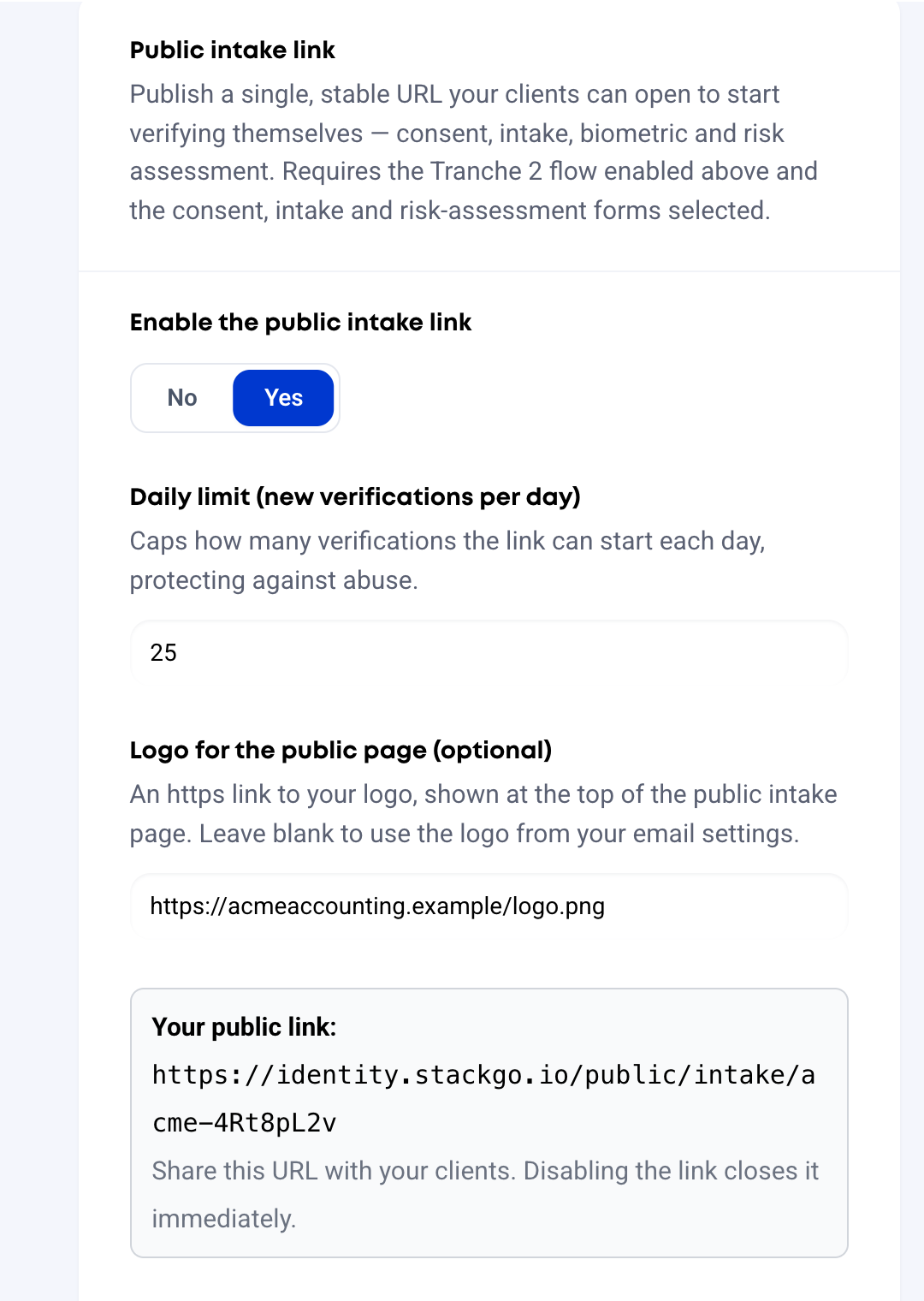
If you leave it blank, the page uses the logo from your email settings. If that is blank too, it shows the IdentityCheck logo.
Your email logo
Verification and reminder emails have their own logo settings, in Emails (Custom Emails) and Reminders. See Adding your firm's logo and branding.
Frequently asked
Which file types can I upload? PNG, JPEG or WebP, up to 2MB. SVG files cannot be uploaded: export your logo as a PNG, or paste a public https link to it instead.
The builder says logos must be under 64KB. Is that right? No. That note comes from the form builder's standard text. IdentityCheck accepts uploads of up to 2MB.
Which logo shows on my public intake page? The logo set in Tranche 2 settings under Public intake link. If that is blank, the page uses the logo from your email settings, and if that is blank too, the IdentityCheck logo.