
Editing a form: click Edit first, then save
Overview. Every form opens read-only, so nobody changes a live form by accident. To make a change you click Edit, make your changes, and then click the save (disk) icon. Nothing saves automatically, and your questions and your theme each have their own save icon. This article walks through it and explains when your clients see the change.
Open the form
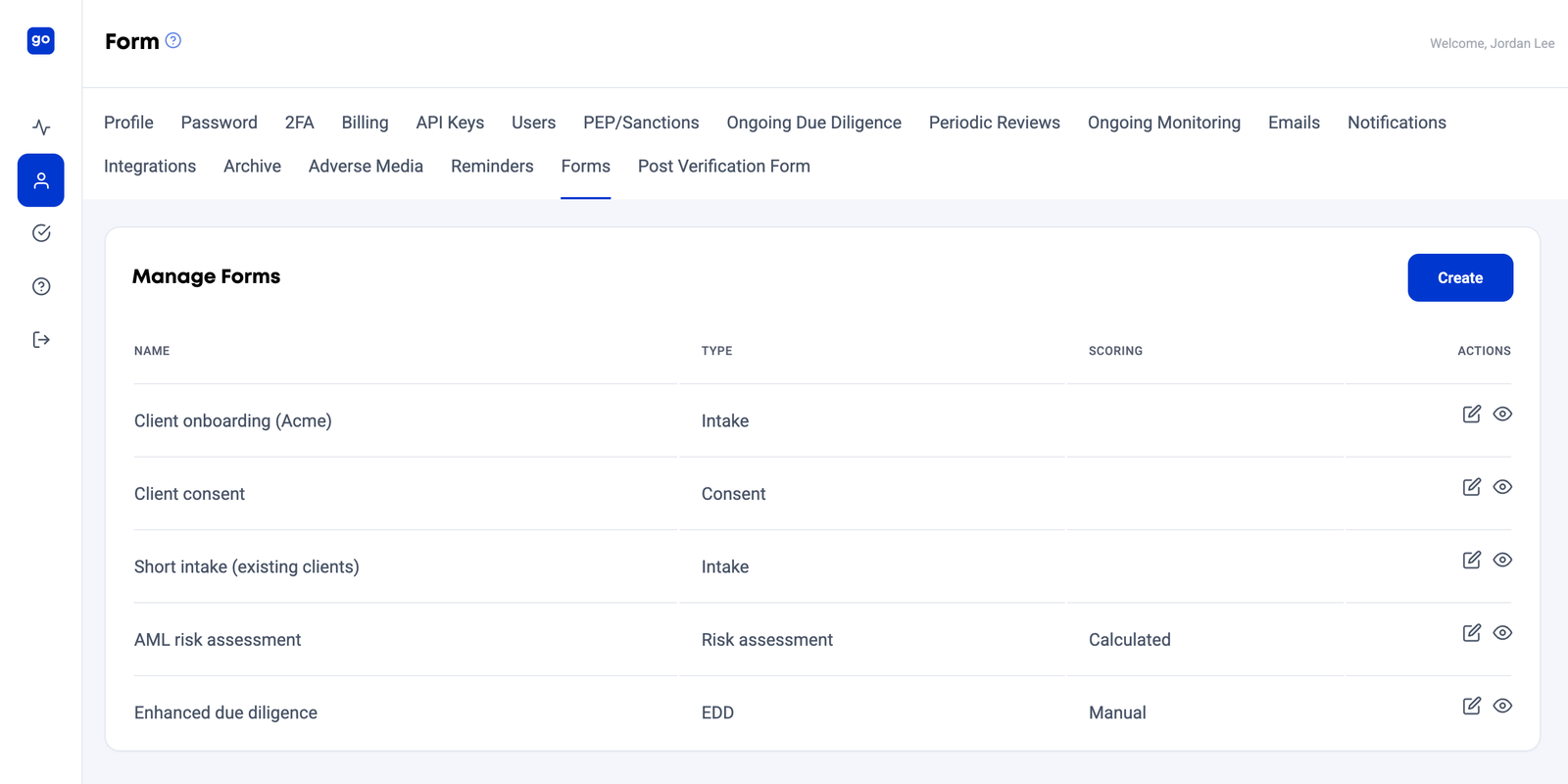
- Go to Account, then the Forms tab (identity.stackgo.io/account/forms).
- Find your form and click its view (eye) icon.
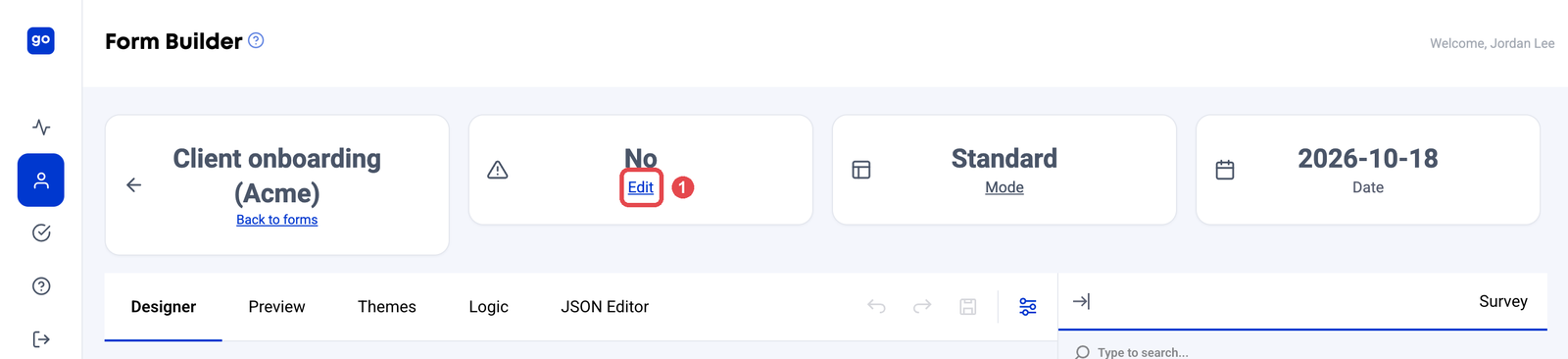
Step 1: click Edit
The form opens read-only. At the top, the Edit card shows No, with an Edit link under it. Click Edit and the card changes to Yes. The form is now editable.
Step 2: make your changes
- Designer tab: questions, wording, logic, your logo and images.
- Themes tab: colours, font, background and question style. See Changing a form's colours, font and background.
Step 3: click save
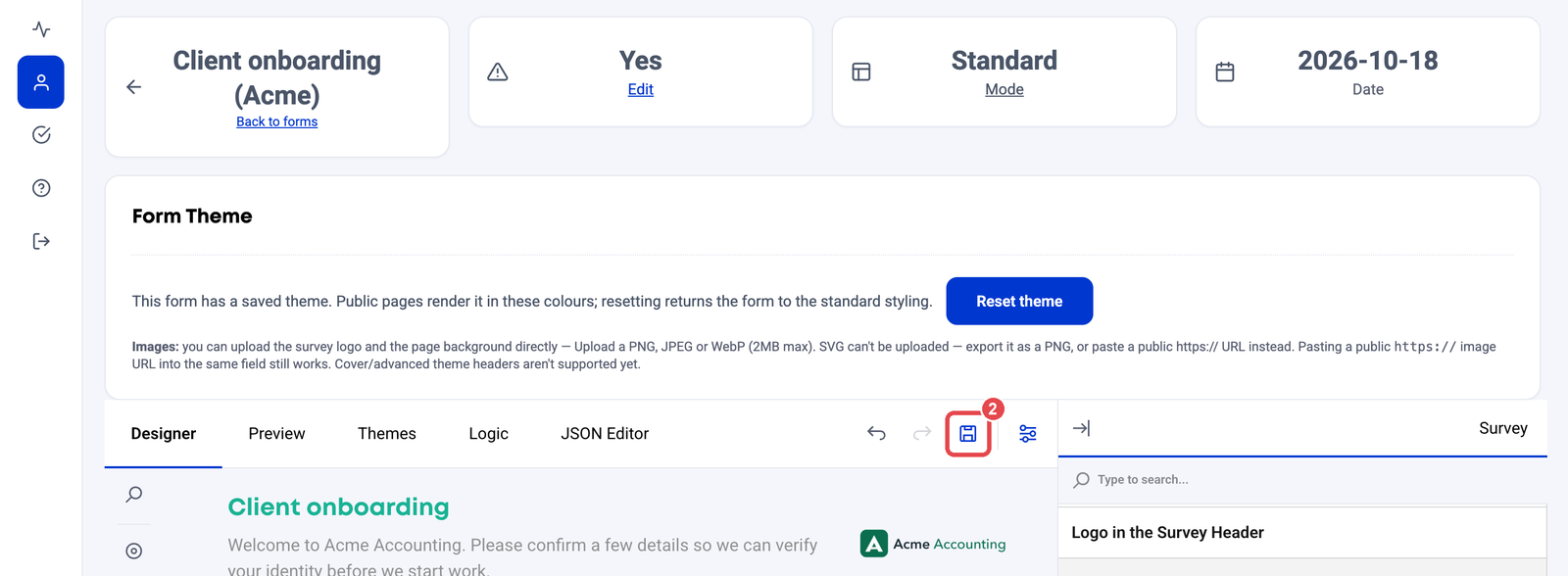
Click the save (disk) icon in the toolbar of the tab you are working in.
- In the Designer tab, the save icon is labelled Save Survey. It saves your questions, wording and logo.
- In the Themes tab, the save icon is labelled Save Theme. It saves your theme only.
- On a risk assessment form, scoring has its own Save scoring settings button.
The save icon stays greyed out until you change something. If you changed both the questions and the theme, save in both tabs.
Before you leave the page
- Nothing saves automatically. Save before you move on.
- Leaving the page discards unsaved changes, without a warning.
- Clicking Edit again while you are editing reloads the form and discards anything you have not saved. Use it on purpose to undo unsaved changes.
When your clients see the change
- Straight away. Saving makes the change live. There is no draft or publish step.
- Clients part-way through get the updated form the next time a page loads.
- Submitted forms are not changed. A form a client has already submitted keeps the questions they answered.
- Saving updates the form in place. A label such as "(v1)" in a form's name is part of its name. Saving does not create a new version, and there is no version history to roll back to.
If you are making a large change, such as removing questions, do it at a quiet time, because clients who are mid-way through will see the new form on their next page.
Frequently asked
Why can't I change anything on my form? Forms open read-only. Click Edit at the top of the form first. The card above it changes from No to Yes and the form becomes editable.
Do my changes save automatically? No. Click the save (disk) icon when you have finished. Your questions save from the Designer tab and your theme saves from the Themes tab, each with its own save icon. If you leave the page without saving, your changes are lost and there is no warning.
When do clients see my changes? As soon as you save. There is no draft or publish step. A client part-way through a form gets the updated form the next time a page loads. Forms a client has already submitted keep the questions they answered.